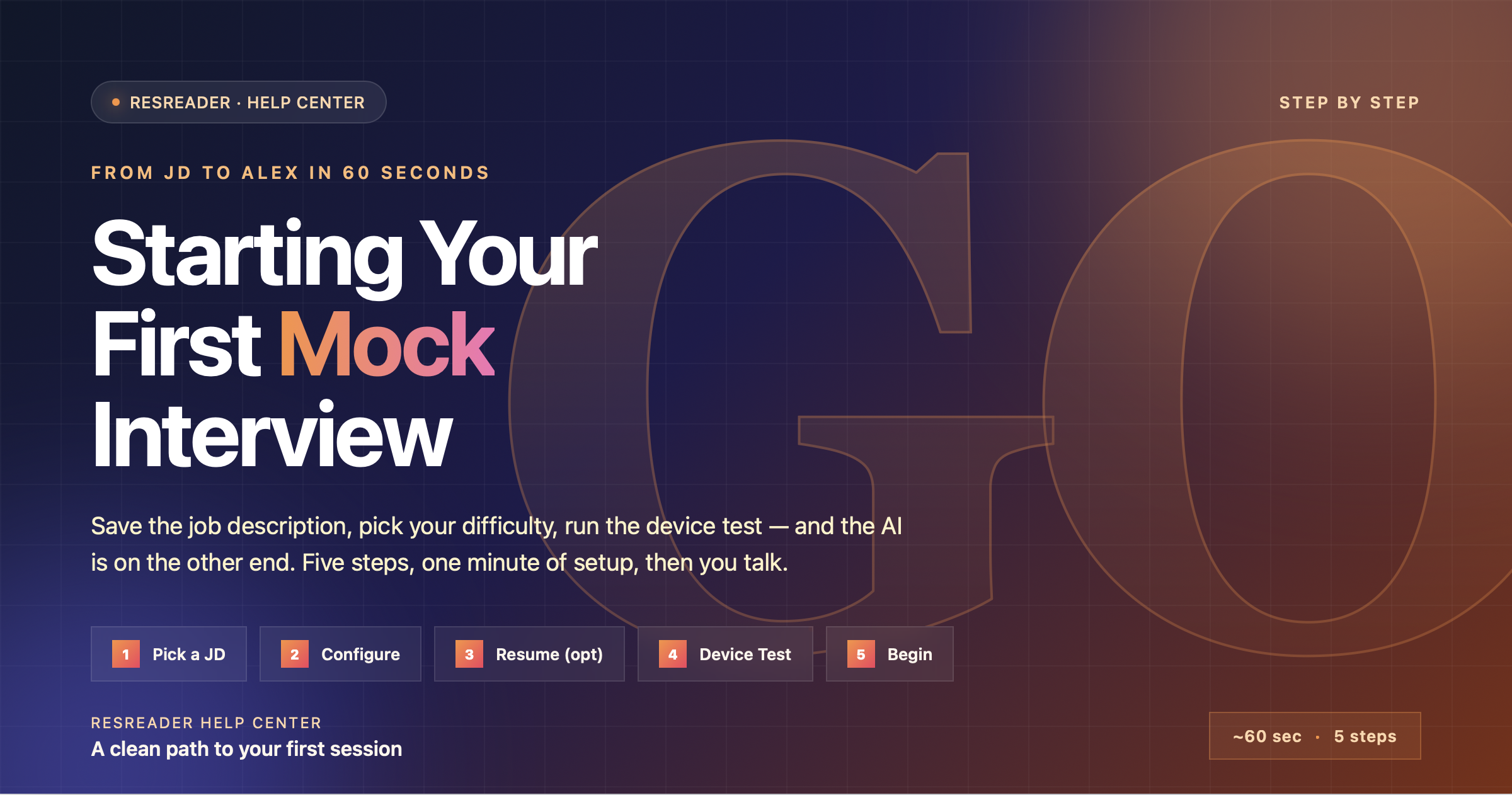
Starting Your First Mock Interview
Running your first mock interview on ResReader takes about a minute of setup before you talk to the AI. This guide walks through every step — from opening the Mock Interview tab to seeing the "Begin interview" button go active.
Before you start
Three things make the experience much smoother:
- A working webcam and microphone, with browser permissions allowed. The mock is a voice and video session — both are required to start.
- A copy of the job description you want to practice for. Paste-from-clipboard works fine.
- Your resume on file, if you want the AI to ask questions grounded in your actual experience. You can also upload one mid-flow.
A quiet, well-lit space helps, but isn't strictly required.
Step 1 — Open the Mock Interview tab
Sign in to ResReader and open the Mock Interview tab (first tab on the dashboard). The first time you land here you'll see:
- A hero card: "Practice your interview, judgment-free."
- Three feature pills: Voice + video · Live transcript · Scored feedback.
- A "How it works" stepper: Save the JD → Talk live → Get scored.
- A + Job Description button.
- Below: an empty hint — "No saved JDs yet — create one to start practicing."
Returning visitors see their previously-saved JDs listed below the button.
Step 2 — Save a job description
Tap + Job Description. A dialog opens with two fields:
| Field | Notes |
|---|---|
| Title (optional) | A short label for the JD — e.g. "Acme — Senior Go". Up to 80 characters. Skip it and ResReader auto-derives the title from the first non-empty line of the JD (truncated to 80 chars); if the JD is one big paragraph, it falls back to "Untitled — YYYY-MM-DD". |
| Job description | The actual posting text. Min 120 characters, max 5,000 characters. Use the inline Paste button at the top-right to grab the clipboard in one tap. |
A check-mark next to the JD field confirms you've passed the 120-character minimum. The Save button stays disabled until that bar is met. Hit Save and the dialog closes — your new JD appears in the list as a card showing the label, a JD preview, and any past-session count.
Step 3 — Open the JD's workspace
Tap the saved JD to enter its detail page. This is where the per-session configuration lives, and every session you run against this JD launches from here.
The page is divided into two parts:
- NEW SESSION — config for the next interview you're about to run.
- PAST SESSIONS — the history of previous interviews against this same JD, with their scores.
Step 4 — Configure the session
The NEW SESSION section has four cards stacked top to bottom. The defaults are sensible — you can skip straight to Start interview the first time.
A. Use my resume
A toggle plus a dropdown of resumes on file. When on, the AI grounds at least two of its questions in concrete items from the selected resume (a named project, an employer, a technology). When off, the AI works from the JD alone.
- Most recently uploaded resume is selected by default.
- Upload new CV (button inside the card) lets you add one without leaving the page.
- No resume on file disables the card with a helper line — upload one to enable.
B. Questions
A segmented picker for how many questions Alex should aim to ask. The seven choices are: 3, 5, 8, 10, 12, 14, 16. Default 5. More questions = a longer session but more coverage.
C. Difficulty
Three segments: Easy · Medium · Hard. Default Medium.
- Easy: standard, well-known questions; forgiving follow-ups.
- Medium: mix of standard and role-specific questions; probing follow-ups when answers are vague.
- Hard: aggressive role-specific drilling; edge-case probes; less forgiving with vague answers.
The chosen difficulty also nudges the AI's response variety — harder sessions feel less scripted.
D. Anything we should focus on? (optional)
A free-text steering note. Example: "Go heavier on system design" or "Keep it conversational." Keep it to a sentence or two. It nudges the question style but won't change the language or difficulty you picked.
Your last-used question count and difficulty are remembered per JD. Next time you visit this JD's detail page, the same values are pre-filled.
Step 5 — Tap "Start interview"
The purple Start interview button at the bottom of the NEW SESSION section kicks off the session. Several things happen in sequence:
- Credit check. ResReader confirms you have a mock-interview credit available (free plan = 1/month; premium = 30/month + top-up). If you're out, the paywall sheet opens instead. Failed sessions auto-refund the credit.
- Session draft. A new session document is created server-side with your JD + config.
- Browser permissions. ResReader asks your browser for camera and microphone access. Allow both when the prompt appears — without them, the session can't start.
- Page transitions to device test. Once permissions are granted, the button changes label briefly to "Preparing…" and the page swaps to the Device Test phase.
If you cancel the camera or mic permission prompt, a dialog explains what to do (typically: click the camera icon in the address bar and re-grant access). You won't be charged for a session you never started.
Step 6 — Pass the device test
The device test phase shows:
- A camera preview of yourself (so you can check framing, lighting, hair).
- A camera device dropdown with an OK/not-OK indicator next to it.
- A microphone device dropdown with the same OK/not-OK indicator — pick the right mic if the wrong one is selected.
- A "Before we start" rules card with four points:
- Speak naturally — Alex will listen and ask follow-ups.
- Find a quiet, well-lit space.
- The session will be recorded so you can review it.
- Your recording stays in your account; nothing is shared.
- A checkbox: I understand and want to start the practice.
- A purple Begin interview button with a play-arrow icon.
The Begin button stays disabled until two things are true: (1) your camera + mic are initialized and (2) the checkbox is ticked. While the session connects, the button shows a spinner with the label "Starting…".
Step 7 — Talk to Alex
Once the voice + video connection is established, you're moved to the interview room. Alex's opening line is always some variation of:
"Hi there, I'm Alex, and I'll be running your mock interview today."
Wait for Alex to finish, then answer naturally. Alex will:
- Ask one question at a time.
- Wait for you to finish before responding.
- Ask brief follow-ups when an answer is short or vague.
- Stay on topic — if you ramble, Alex will redirect.
- Close with the exact phrase "This concludes our interview." — that's the system signal that ends the session.
The screen shows a live transcript so you can see what Alex said and what your microphone captured.
What can go wrong
| Issue | Fix |
|---|---|
| Browser blocks camera / mic | Click the camera icon in the address bar (Chrome / Edge / Firefox) and switch the permission to Allow. Refresh the page if needed. |
| "Out of credits" sheet appears | Free plan is 1/month. Either wait for the monthly reset, upgrade to Premium, or buy a top-up pack. |
| "Could not start the AI interviewer" | Tap Start again. The token has been refunded if the issue was on the AI side — you won't be double-charged. |
| Audio drops mid-session | Check your mic in the OS sound settings. The session can't be resumed from a drop, and because the credit was reserved when the AI handshake succeeded, it's already been spent. Reach out if a session ends prematurely through no fault of yours. |
| You close the tab before Begin | The draft session is auto-deleted on dispose, so no clutter is left behind. |