Tracking Your Progress Across Mock Interview History
Every mock interview you run on ResReader is kept in your history. You can re-watch any recording, re-read any scorecard, and watch your average score improve over time as you practise. This article explains the layout, what each piece means, and what you can actually do with a past session.
Where to find it
Open the Mock Interview tab in your candidate dashboard, then switch to History. You'll land on a list of every interview you've started, newest at the top.
If you reach History from a specific saved job description (for example, by tapping "Past interviews" on that JD's page), the list will be pre-filtered to that job. A banner at the top reads "Filtered by job description: [title]" with an X to clear it.
Your practice journey at a glance
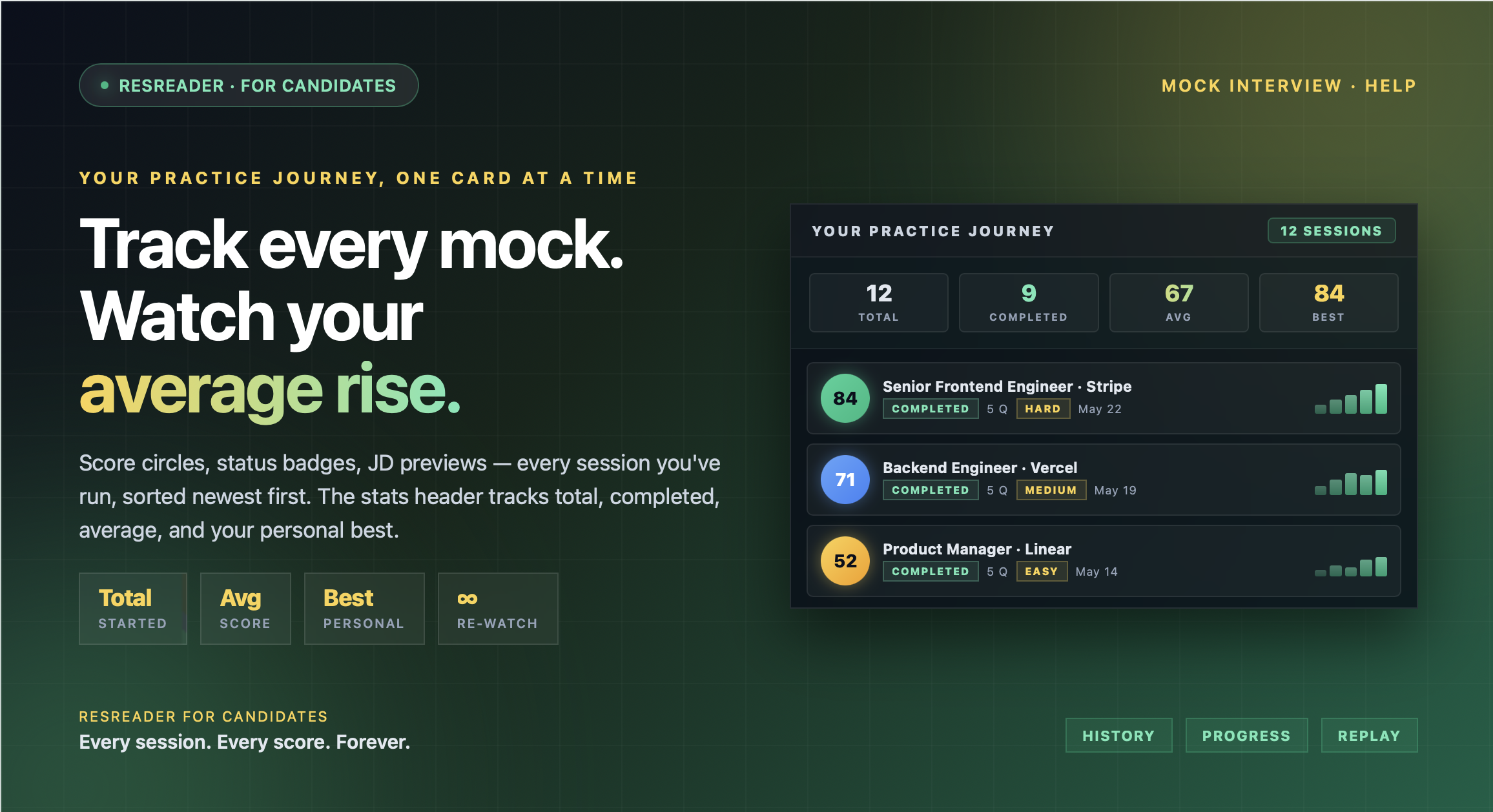
When you view all your interviews (no filter), a stats header sits above the list. It shows four numbers:
- Total — Every committed session you've started.
- Completed — Sessions that produced a final score. (Drafts and abandoned starts don't count here.)
- Avg score — Your average overall score across all completed sessions. Shown as a dash if you haven't completed any yet.
- Best — Your highest overall score to date.
The four numbers update every time you complete a new interview, so the list doubles as a "how I'm doing" view. When the Avg score number climbs over multiple sessions, that's your progress.
What each session card shows
Each row in the list is one mock interview. From left to right you'll see:
- Score circle — A round badge with the overall score (0–100) inside, colour-coded by band: green for 80+, blue for 50+, amber for 30+, red below. If the session is still being scored, you'll see an hourglass icon instead.
- Status badge — A short pill that says Completed, Scoring…, In progress, Error, or Not started, depending on where the session is in its lifecycle.
- Question count — How many questions you were asked (e.g., "5 Q").
- Difficulty — Easy, Medium, or Hard, when the session has a difficulty set.
- Job description preview — The first line of the JD you practised against, truncated if it's long. This is the main title of the row.
- Date — When you completed the interview (or when you created it, if it hasn't completed yet).
What you can do with a past session
Tap any completed session and you land on the full result page for that interview. Everything is rehydrated from saved data — the scorecard isn't being regenerated; you're reading exactly what the AI produced at the time. From here you can:
- Re-read the scorecard — overall score, summary, strengths, improvements, and per-question reviews.
- Re-watch your recording — your full video plays back from the recording card.
- Re-read the transcript — a Q&A modal shows every question and your answer side by side.
- Re-read the study guide — the per-question ideal answers and key points are still there.
Use this page when you want to compare what you said to the AI's ideal answer days later, not just immediately after the session.
Running another interview for the same JD
If you start a new interview from a saved JD you've already practised against, ResReader creates a new session — it doesn't overwrite the old one. The AI is told which questions it already asked you in completed sessions for that JD and tries to avoid repeating them, so each run gives you fresh practice on related but new questions.
This is intentional. The point is to build range across different question types, not to memorise five fixed ones.
Sorting
The list is always sorted newest first. There's no toggle to flip it. If you want to find a specific older session, scroll, or open it from the saved JD page instead (which gives you a JD-filtered view).
Free vs Premium quotas
How many sessions you can run lives next to the history list:
- Free — 1 mock interview per month.
- Premium — 30 mock interviews per month (resets on your billing cycle).
- Top-up packs — $11.99 buys +10 mock interview credits that don't expire and stack on top of your monthly quota.
Your history holds every session you've ever run, regardless of plan. Switching plans doesn't reset your history.
Want to understand what the scores you see in history actually mean? See How Is My Mock Interview Scored?
Try Now →
Start your first mock interview on ResReader — free, no credit card.