Running a Device Test Before Your Mock Interview
Every mock interview on ResReader opens with a device test — a short pre-interview screen where you confirm your camera and microphone are working before the AI interviewer starts asking questions. This article walks through what's actually being tested, how to pass it, and what to do when something doesn't light up green.
Why we test first
Your mock interview is voice-and-video. If your microphone fails ten seconds into your first answer or your camera permission prompt steals focus mid-question, you've lost a practice run that you may have paid for in credits. The device test exists so that everything is verified working before the timer starts.
Think of it as the same thirty-second mic-check a real video interview would do — only here, we do it for you.
What the device test actually checks
When the device test loads, you'll see:
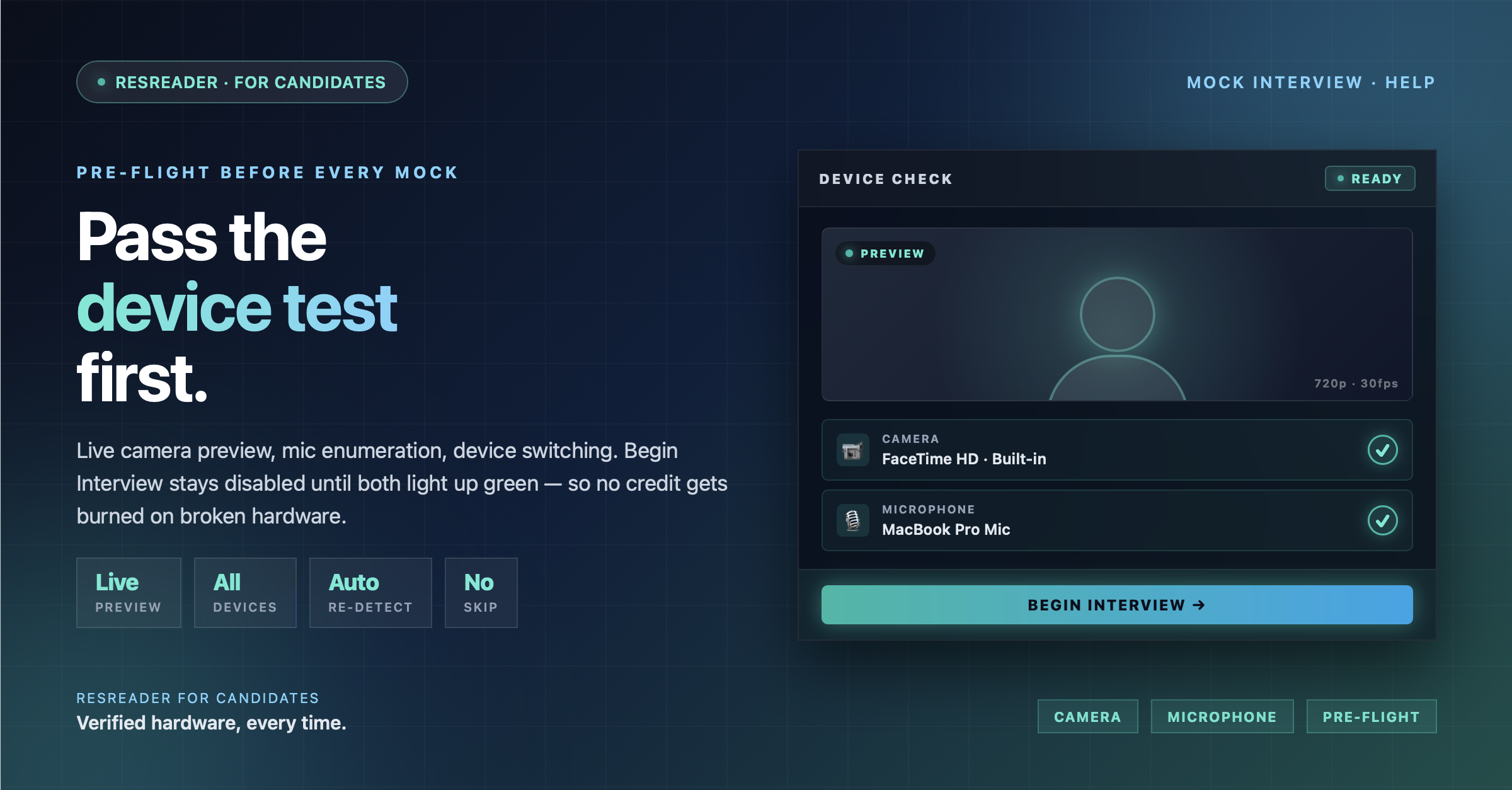
- A live camera preview — your own video feed, mirrored back to you, exactly as the AI will see it during the interview.
- A microphone picker — a dropdown listing every audio input available to your device (built-in mic, headset, external USB mic, etc.).
- A camera picker — a dropdown listing every video input available (laptop camera, external webcam, etc.).
- A status row per device — a green check (✓) if the device is detected and producing a stream, a red X if not.
There's no separate "recording" or "audio level" meter. The check is essentially: can we open this device and read from it right now? If yes, it passes.
Granting permissions
The first time you reach the device test on a given browser, your browser will pop up a permission prompt for camera and microphone access. Both must be granted. You'll know it worked when the live preview shows your face and the status row for each device shows a green check.
If you accidentally clicked "Block" on the prompt, the preview area will show "Camera not available" and the status rows will sit on red Xs. The fix is to re-grant permissions in your browser's site settings — there's no on-page button that overrides a denied prompt.
The "Begin interview" button stays disabled until both pass
Below the device test you'll see a Begin interview button. It is intentionally disabled until both your camera and microphone are confirmed working. This is not a bug — it's there to stop you from burning a credit on an interview your AI interviewer can't actually see or hear.
Once both devices show green, the button activates and you can start.
If something doesn't light up green
A short troubleshooting list:
- "Camera not available" — Your browser is blocking camera access. Open your browser settings, find ResReader's site permissions, and allow camera. The device test will detect the change without a refresh.
- No microphones in the dropdown — Your OS isn't seeing any audio input. Check that your headphones are plugged in, your USB mic is connected, and the system isn't muted at the OS level. Then close and reopen the device test.
- Multiple cameras listed and the wrong one is selected — Use the dropdown to pick the one you actually want. Laptops with both an internal webcam and an external one can sometimes default to the wrong source.
- The preview shows you but the mic shows a red X — Your camera permission is granted but your mic permission isn't. Re-check the permission prompt; browsers ask separately for each.
- Permissions stuck in a weird state — Look for the camera icon in your address bar. Most browsers expose a quick toggle for site permissions there. Reset and re-grant.
You can't skip the device test
There's no "skip" button, and that's deliberate. The most painful failure mode for a mock interview is starting one with broken hardware — you spend a credit, you record yourself talking to a wall, and you don't get scored. The device test is the cheap gate that stops that from happening.
Browser notes
The device test works on Chrome, Safari, Firefox, and Edge on both desktop and mobile. If something feels off on one browser, switching to Chrome is the safest fallback — it's the most consistent.
Devices working? Next read: How Is My Mock Interview Scored?
Try Now →
Start your first mock interview on ResReader — free, no credit card.