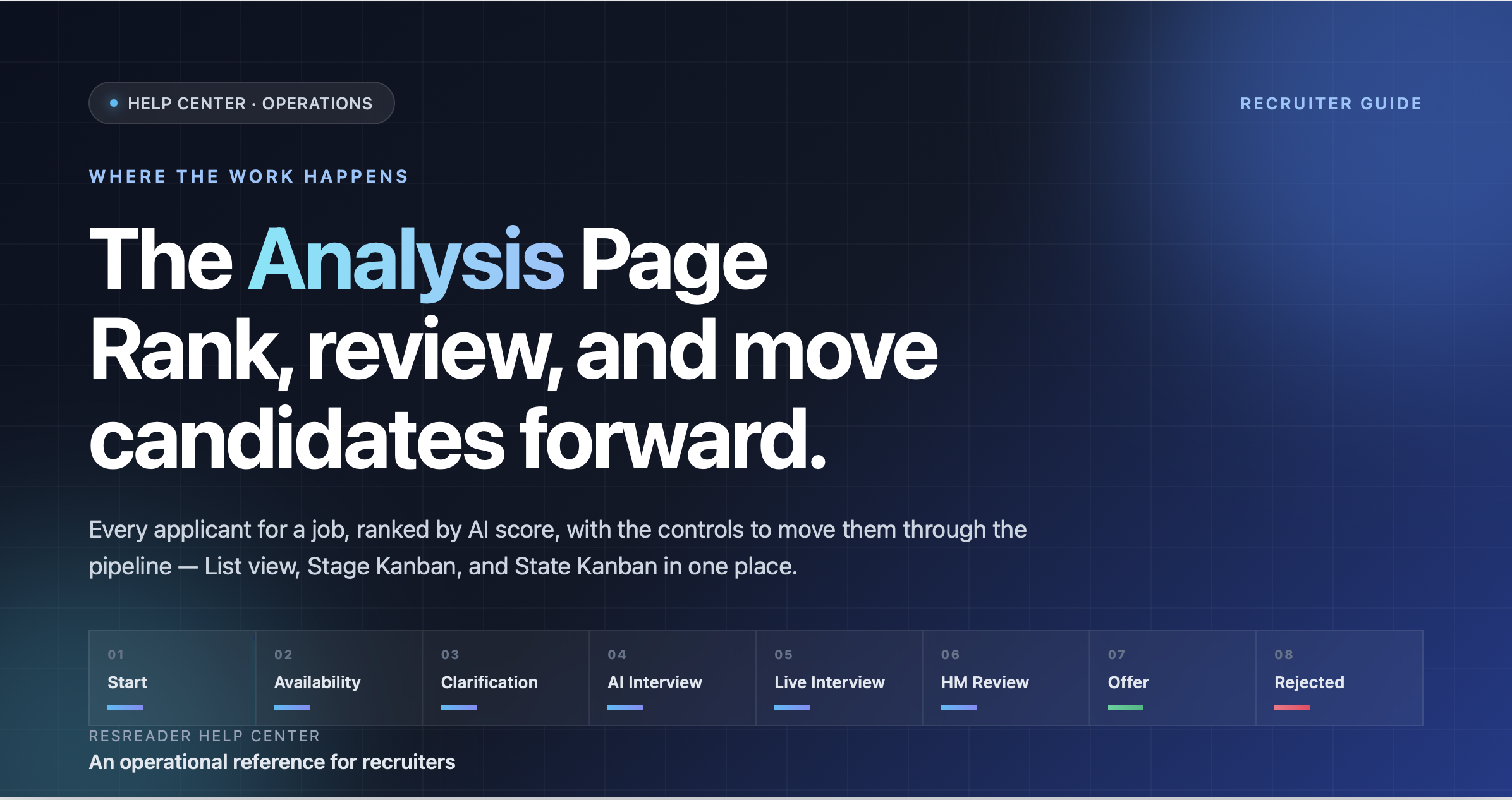
The Analysis Page
The Analysis page is where you spend most of your time once candidates are in a job. It shows every applicant for the job, ranked by AI score, and gives you the controls to move them through the pipeline. This is an operational reference — what each control does and when to use it.
Layout modes
There are two layouts, switchable from the toolbar:
- List (default) — a vertical list of full candidate cards, one per row. Best for reading deeply, using filters, doing bulk actions, and reviewing AI analysis.
- Kanban — candidates rendered as compact cards on a horizontal board with columns. Best for visualizing the pipeline at a glance and moving people forward.
Your last choice is remembered per job, so jumping between jobs doesn't fight your preference.
The two Kanban modes: Stage vs State
When you switch to Kanban, a mode pill appears in the toolbar with two options: Stage and State. They look similar but represent fundamentally different things.
Stage mode (recruiter's columns)
This is the traditional Kanban — you define your own columns and drag candidates between them.
- Stages are user-defined: name, color, and order are up to you. Common examples: "New", "Phone Screen", "On Hold", "Top Picks".
- Columns are stored on the candidate (
stageIdfield) — moving a card writes the new stage to the candidate. - An Unassigned column shows candidates who haven't been placed on any stage yet.
- Add, rename, delete, or reorder stages from the stage sidebar.
Use Stage mode when you want to organize the pipeline around your own thinking — your team's vocabulary, your shortlist conventions, your judgment.
State mode (workflow columns)
This is the system-defined Kanban — the eight columns mirror the candidate workflow and the cards are bucketed automatically by where each candidate actually is in that workflow.
The columns, in order:
- Start — applied but no action taken yet
- Request Availability — availability email sent, waiting on reply
- Clarification — follow-up questions sent or answered
- AI Interview — AI interview sent or completed
- Live Interview — recruiter has engaged (email sent, transcript applied, interview scheduled, or post-interview decision made)
- HM Review — forwarded to hiring manager
- Offer — offer sent, opened, or declined
- Rejected — rejection email sent
Hired and archived candidates are filtered out of this view entirely — State mode is for active pipeline.
Key differences from Stage mode:
- Columns are not stored — they're derived from the candidate's actual data (which emails went out, which replies came back). You cannot edit, rename, or reorder them.
- Dragging a card to another column fires that column's action. Drop a candidate on AI Interview → ResReader sends the AI interview. Drop them on Offer → the offer flow opens. The Kanban becomes an action launcher, not just a categorizer.
- Forward-only, with one exception: you can drop a candidate onto Rejected from anywhere (rejection has to be reachable from every stage). Backward drags are rejected with a snackbar message.
- Forward skips are allowed — drop a Start candidate on HM Review and the system fires "Send to Hiring Manager", implicitly skipping the intermediate emails. Use this when you've already done the legwork outside the system.
- Each card also shows a Next Action chip (e.g. "Send Rejection Email", "Send AI Interview") for one-tap action without needing to drag.
Use State mode when you want the board to drive the workflow — fewer clicks, faster batch action, and an honest picture of where each candidate actually is.
When to use which
| You want to… | Use this mode |
|---|---|
| Organize candidates by your own categories (shortlist, hold, etc.) | Stage |
| Watch the system-defined funnel and act on it | State |
| Manually assign a candidate to a custom bucket | Stage |
| Send AI interview / offer / rejection to many people quickly | State |
| Track candidates outside the standard workflow | Stage |
You can switch between them at any time — the data is the same, only the visualization changes.
Top toolbar
Layout switch
Toggles between List and Kanban.
Mode pill (Kanban only)
Switches between Stage and State Kanban modes.
Search
Free-text search across candidate name, email, and resume content. Updates the visible set in real time.
Filter chips
Quick filters that narrow what's shown:
- All — everyone
- Qualified — AI verdict says they meet the requirements
- Analyzed — AI analysis has finished (regardless of verdict)
- Pending — analysis still in progress
- Not Qualified — AI verdict says they don't meet the requirements
- Archived — set aside for later
- Clarification Received — you sent follow-up questions and they answered
- Interview Analyzed — AI interview is done and a transcript exists
- Recruiter Interview Date Requested — a real interview slot was booked
Sort
- Default — system ordering (typically score descending)
- Date — newest applicants first
- Score — highest AI rating first
Skill filter
Narrow candidates to those whose resume mentions specific skills. Type to search the skill list, tick what you care about, apply. Use Clear to reset.
Tabs
- Applicants — the candidate list/board (this is where you spend most of your time).
- Statistics — aggregate metrics for the job: how many applied, how many qualified, conversion rates, etc.
Overflow menu (top-right)
The overflow menu groups job-level actions:
- Offer Drafts (N) — open the offers in progress for this job
- Email Review — review queued emails before they go out
- Edit Job — open the job settings (description, mandatory skills, hiring managers, calendar settings, follow-up automation toggle)
- Share Job — copy the public application link
- Analytics — deeper performance data for the job
- Distribute — open the Distribute Job screen for managing multiple application links and tracking sources
- Templates — manage email templates used in this job
- Scorecard templates — manage interview scorecard templates
Bulk actions
Select multiple candidates (checkbox on each card, or Select All in the toolbar). When you have a selection, a bulk-action menu becomes available. Each item runs against every selected candidate.
Workflow actions:
- Request Availability — send the availability check email
- Send Follow-up — send AI-generated clarification questions
- Send AI Interview — send the AI-interview link
- Schedule Interview — bulk-send the real-interview scheduling link
- Approve or Reject — set the post-interview decision flag (no email)
- Send to Hiring Manager — forward to the HM roster on the job
- Like for Hiring Manager — soft "I like this one" marker without forwarding
- Make Offer — start the offer flow
- Send Rejection Email — queue rejections (AI-generated or template)
Communication:
- Send Email — free-form email to the selected candidates
- Bulk SMS — text the selected candidates
Lifecycle:
- Archive / Unarchive — set aside for later, or restore
- Re-scan — re-run AI analysis (use after editing the job description)
- Delete — permanently remove the application(s)
Cross-job actions:
- Apply to Another Job — copy the application to another job posting (keeps the original)
- Transfer to Another Job — move the application to another job (removes from this one)
- Forward to Partner — share the candidate with another recruiter outside your business
- Merge Applications — combine duplicate applications from the same candidate into one record
- Compare Candidates — open a side-by-side comparison view
The "Position Filled" banner
When one or more candidates accept an offer, a banner appears across the top of the Analysis page:
- Notify remaining (N) — send a courtesy notification (typically a rejection) to all candidates who didn't get the offer
- Close job — close the job posting (no new applications, candidate history preserved)
- Keep open — leave the job open, useful when you're hiring more than one person for the role
- Dismiss (×) — hide the banner without taking action
Tips
- Set the AI baseline first. Before you start moving candidates, glance at the score distribution. If everyone is rated 3-4, your mandatory skills list might be too strict. If everyone is rated 8+, you may need to tighten requirements.
- Use State mode for batch outreach. When you have 50 fresh applicants and want to send the AI interview to the top 20, sort by score, multi-select, and use the State-mode action menu — it's the fastest path.
- Use Stage mode for shortlist curation. When you've narrowed down to ~10 finalists for HM review, Stage mode lets you build a "Shortlist" column visible to the team.
- Re-scan after job edits. If you change the job description or mandatory skills, run Re-scan on the existing candidates so their scores reflect the new requirements.
What's next
- The Candidate Workflow → — the underlying steps the State Kanban visualizes
- Adding Resumes → — get more candidates into the pipeline