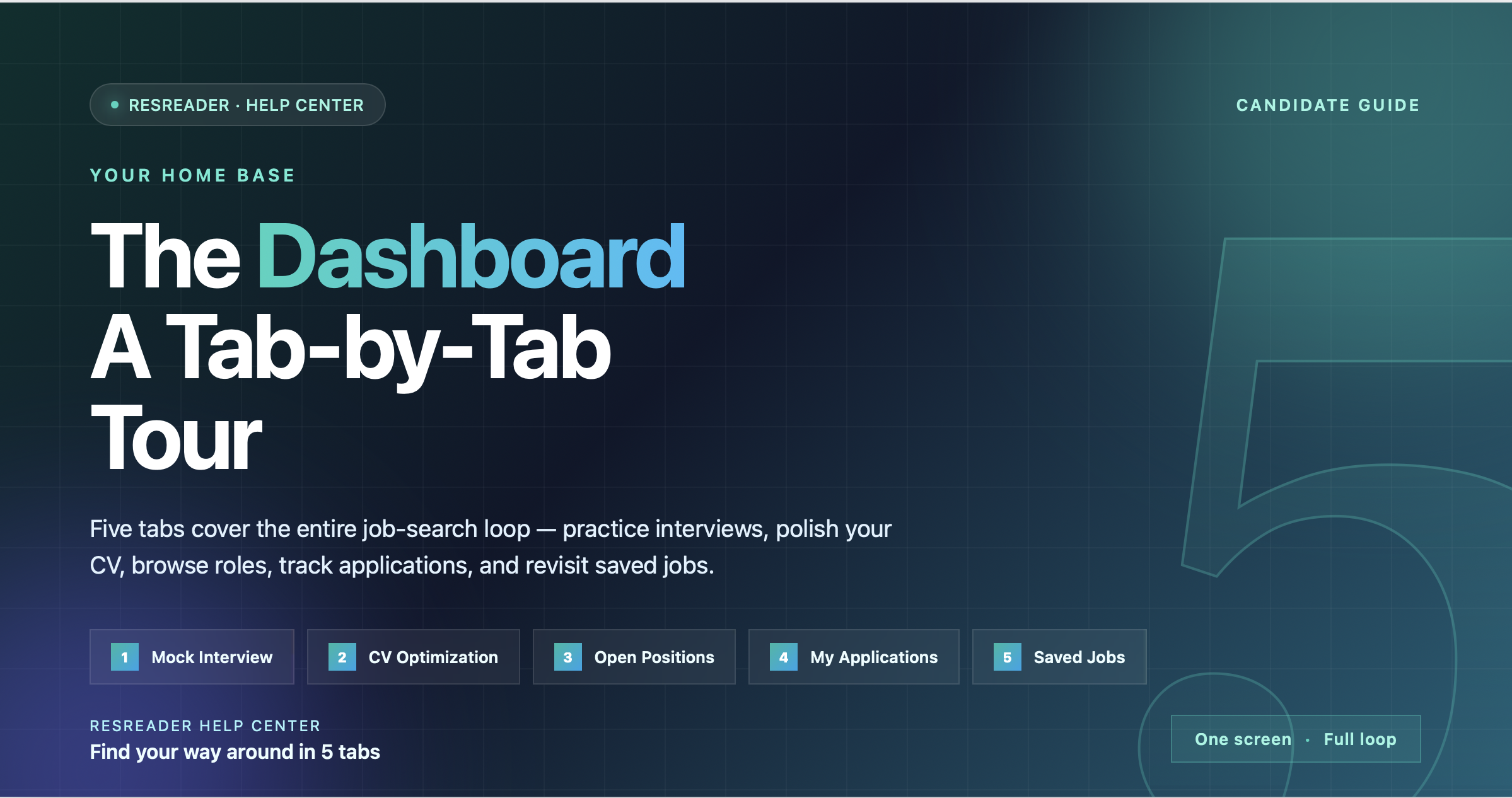
The ResReader Dashboard: A Tab-by-Tab Tour
The ResReader dashboard is the one screen you'll spend almost all your time on. It's organized around five tabs that cover the full job-search loop — practicing interviews, polishing your CV, browsing open roles, tracking what you've applied to, and saving what you want to come back to. This guide walks through each tab, every button in the top bar, and the controls that hide behind your profile avatar.
Top bar — the same on every tab
The bar that sits across the top of the dashboard has three elements, left to right:
| Element | What it does |
|---|---|
| "Find Your Dream Job" title | Static label. No action — just confirms you're on the candidate home. |
| Upgrade pill (lightning-bolt icon, purple gradient) | Only appears if you're on the free plan. Tapping it opens the ResReader Billing page where you can subscribe to Premium or buy a mock-interview top-up. |
| Profile avatar (blue-purple gradient circle) | Tap to open your Profile page. Hovering on desktop shows your full name in a tooltip. |
If you don't see the Upgrade pill, you're already on Premium. The avatar is always visible.
The five tabs
The tab strip sits directly below the top bar. On narrow screens the strip scrolls horizontally; on desktop it centers. The currently active tab is underlined in blue.
1. Mock Interview
The first tab opens the Mock Interview Lobby — a workspace for practicing job interviews with an AI that talks to you over voice and video (your camera + mic are both required). You paste a job description (or pick one you've already saved), pick the number of questions and difficulty, and the AI runs a live session, then scores your answers and tells you what to improve.
What lives inside this tab:
- Your saved job descriptions. The lobby itself is a router — each JD is a card that takes you into its own workspace, where you configure and start a session.
- + New JD button. Opens a dialog to add a new job description (paste the text, give it a label). Once created, you land in that JD's detail page.
- Mock Interview History. Every completed session, with score, transcript, and feedback.
Mock interviews have a free monthly quota (1 per month on the free plan). For details on how the practice itself works, see How Mock Interview Works.
2. CV Optimization
The second tab is the CV Optimization workspace. You upload your CV, paste the job description you're targeting, and the AI rewrites the CV to align with what that specific job is asking for. Output is ATS-friendly — it's structured text designed to make it through resume-screening systems.
CV optimizations also have a free monthly quota (1 per month on the free plan). For the full walkthrough, see How CV Optimization Works.
3. Open Positions
This is the main job board. The tab has three controls stacked from top to bottom:
Search field. The placeholder reads "Search by job title, company, or location..." — those three fields are what the search matches against. Typing filters the list in real time.
Filter chips. A horizontal row of six chips: All · Full-time · Part-time · Remote · Contract · Internship. Only one chip is active at a time. Selecting Remote shows jobs that are explicitly remote; selecting All clears the filter.
Saved-search bookmark icon (top-right of the chip row). Tapping it opens a small menu with two options:
- Save current search — opens a dialog where you can name and refine the search (skills, locations, salary, alert frequency) before saving.
- My saved searches — opens the page where you manage existing saved searches.
Below the controls is the job list. Tapping a job opens its full details:
- On desktop (screen wider than 900 px), the details slide in as a right-hand panel next to the list — you can keep browsing on the left.
- On mobile, the details open as a bottom sheet you can drag up to fill the screen or pull down to dismiss.
For details on saved searches and alert settings, see Saved Jobs & Saved Searches.
4. My Applications
Every time you apply to a job, it shows up here. Each card shows the company, role, date applied, and a status badge set by the employer. There are five possible statuses:
| Badge | Color | Meaning |
|---|---|---|
| Pending | amber | Your application is in the queue, not yet reviewed |
| Reviewed | blue | The employer has opened your application |
| Accepted | green | The employer marked you as a hire / advancing |
| Rejected | red | The employer rejected your application |
| Completed | grey | The application's lifecycle is closed |
You can't change the status yourself — only the employer can — but each card has a Timeline button that opens a chronological view of every event on this application, plus a Withdraw action that deletes your application entirely (mobile only — see My Applications for the desktop workaround).
5. Saved Jobs
Anything you bookmark from the Open Positions list shows up here. Saved jobs persist across sessions and devices — same account, same list. Removing one only takes it out of the saved list; it doesn't affect your application if you've already applied.
The profile menu
Tapping the avatar in the top-right opens the Profile page. It's divided into four sections:
- Personal Information — full name, contact details, profile photo.
- Resumes — your uploaded CVs. The most recently uploaded is the one CV Optimization and Mock Interview use by default.
- Practice Privacy — a toggle that controls where your mock-interview recordings are stored. When ON, videos stay on your device only and never upload to our servers. Transcripts and scores still sync, so you can review your past performance. Default is OFF. For details, see Recording & Privacy.
- Account Actions — sign out, delete account.
Mobile vs desktop differences
The dashboard runs on the same code on web, iOS, and Android. The only meaningful differences are:
| Behavior | Mobile / narrow | Desktop / wide (>900 px) |
|---|---|---|
| Tab strip | Scrolls horizontally | Centers, all five visible |
| Top-bar padding | 16 px | 32 px |
| Open Positions — job details | Bottom sheet (drag-up) | Side panel next to the list |
| Avatar tooltip | Hidden (no hover) | Shows full name on hover |
Everything else — the five tabs, search, filters, profile sections, billing — is identical.